How-To: Creating & Using Digital Signature in PDF

Did you find signing documents would be difficult, where you need to print out the document and have to physically signs it?
Here’s some tips on how to create and use your signature without such hassle. To do this, you need an Adobe Acrobat. To sign a PDF document or form, you can type, draw, or insert an image of your handwritten signature. You can also add text, such as your name, company, title, or the date. When you save the document, the signature and text become part of the PDF.
Step 1:
Open the PDF document or form that you want to sign.
Step 2:
Click the Sign icon

in the toolbar. Alternatively, you can choose Tools > Fill & Sign or choose Fill & Sign from the right pane.

Step 3:
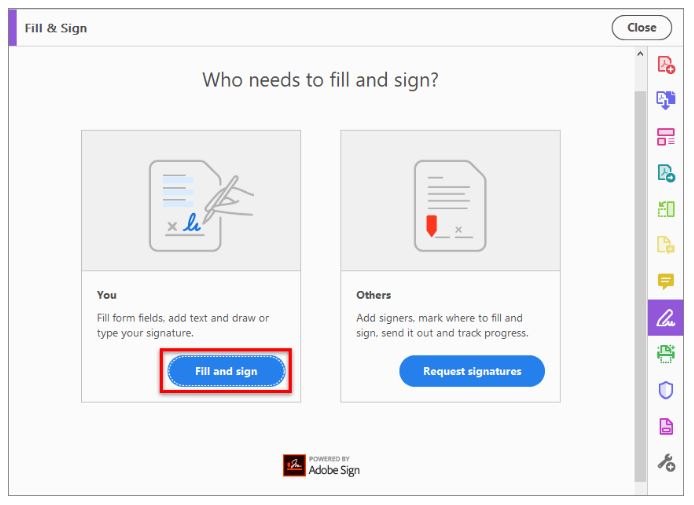
The Fill & Sign tool is displayed. Click Fill and Sign.
Step 4:
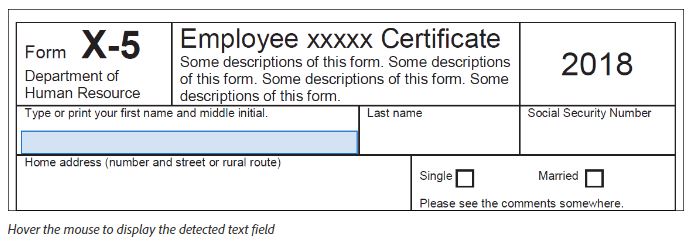
The form fields are detected automatically. Hover the mouse over a field to display a blue box. Click anywhere in the blue box, the cursor will be placed at the right position automatically. Type your text to fill the field.
You can choose your desired color to fill the PDF form. Click the color button in the Fill & Sign menu and choose your desired color.
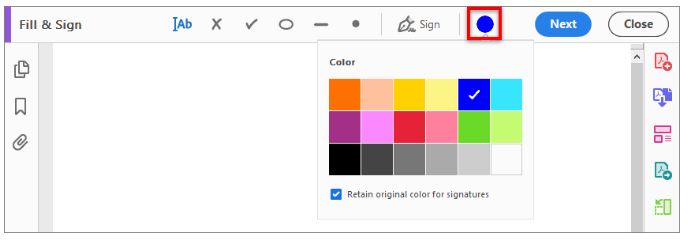
By default, the signature color is black. To retain the default color of the signature, make sure the Retain Original Color For Signature option is unchecked.
Step 5:
Click the Sign icon

in the toolbar, and then choose whether you want to add your signature or just initials.
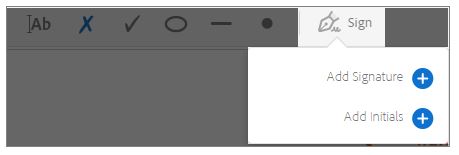
If you have already added signatures or initials, they are displayed as options to choose from.
Step 6:
If you’ve already added your signature or initials, just select it from the Sign options, and then click at the place in the PDF where you want to add your signature. Skip to the next step.
If you are signing for the first time, you see the Signature or Initials panel. Below is an example of the Signature panel.
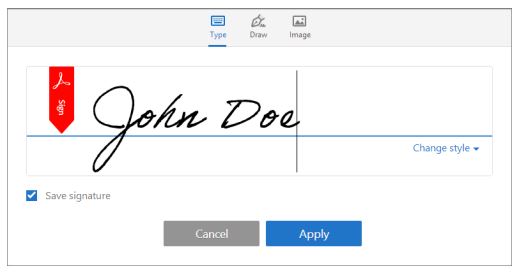
You can choose to type, draw, or import a signature image. Added signatures and initials are saved for future use.
- Type: Type your name in the field. You can choose from a small selection of signature styles; click Change Style to view a different style.
- Draw: Draw your signature in the field.
- Image: Browse and select an image of your signature.
- Save Signature: When this check box is selected, and you’re signed in to Acrobat Reader or Acrobat, the added signature is saved securely in Adobe Document Cloud for reuse.
Click Apply, and then click at the place in the PDF where you want to place the signature or initial.
Step 7:
To move the placed signature or initial, click the field to highlight it and then use the arrow keys. To resize or delete the field, use the options in field toolbar.
Note: If you want to use an image as your signature:
- Sign your name in black ink on a clean, blank sheet of white paper. Sign in the middle of the paper so you don’t photograph or scan the edges.
- Photograph or scan your signature. If you are taking a picture of your signature, make sure that the page is lit and that no shadows fall across the signature.
- Transfer the photo or scan to your computer. Acrobat/Reader accepts JPG, JPEG, PNG, GIF, TIFF, TIF, and BMP files. You do not need to crop the image. Acrobat/Reader imports just the signature if the photo or scan is fairly clean.
Source: https://helpx.adobe.com/reader/using/sign-pdfs.html